

Part two of our HookState series. In part one we covered why raw HookState bytes are hard to read and how the Hook State Converter lets you decode them into a typed ABI schema. This article picks up where that one ended: what you do with that schema once you have it.
From a JSON segment to something useful
At the end of part one, you had a JSON ABI definition — a typed map of your HookState key and value bytes. The article closed with a promise: a dedicated projection builder UI exists that uses that schema to automatically decode HookState entries on the explorer.
It does three things. It lets you browse any hook's raw on-chain state by namespace. It lets you build projections — readable, filterable tables that decode state entries according to your ABI. And it lets you publish a hook manifest, so those projections are available to everyone visiting your hook on the explorer, permanently, without anyone needing to convert themselves.
Browsing namespaces
Every Xahau account can have multiple hooks installed, and each hook stores state under its own namespace — a 32-byte identifier derived from the hook hash. The Data Viewer exposes this structure directly.
Open the tool and navigate to any account. The left panel lists all namespaces active on that account, each showing how many total state entries it contains. Clicking a namespace loads its content into the main panel as a set of tabs.
If a manifest has already been published for that hook, the namespace label resolves from a raw hash to a human-readable hook name, and the hook's projections appear as named tabs alongside the raw view. If no manifest exists yet, the namespace shows as a truncated hash and only the raw tab is available — which is your cue to build one.
A namespace can contain state from more than one hook. In that case each hook gets its own tab group within the namespace, with its projections listed beneath it in the sidebar.
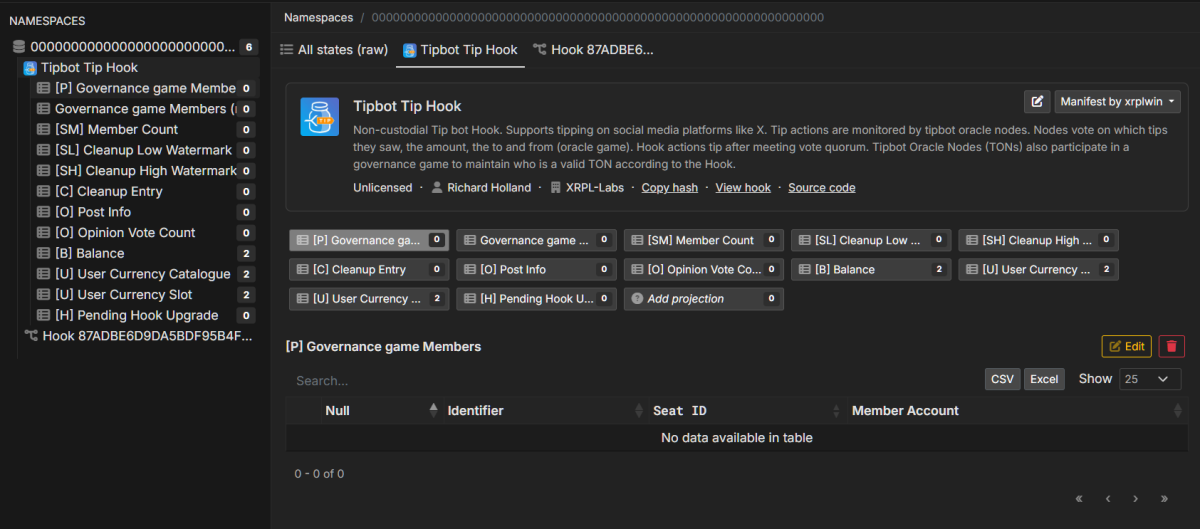
All states (raw)
The first tab in every namespace is All states (raw). This is the unfiltered view of everything stored in the namespace, with no decoding applied.
The table shows four columns: HookStateKey, HookStateData, Flags, and OwnerNode — exactly as they exist on the ledger. Keys and values are displayed as full hex strings. This is the ground truth view: no interpretation, no type assumptions, nothing inferred.
It's most useful when you're first exploring an unfamiliar hook and want to see the raw shape of its state before building any projections, when you suspect a projection is missing entries and want to verify against the full set, or when you're debugging a key encoding issue and need to compare raw bytes directly.
The raw table is fully searchable, sortable, and exports to CSV and Excel — so you can pull the complete state of any namespace into a spreadsheet for offline analysis without writing a single API call.
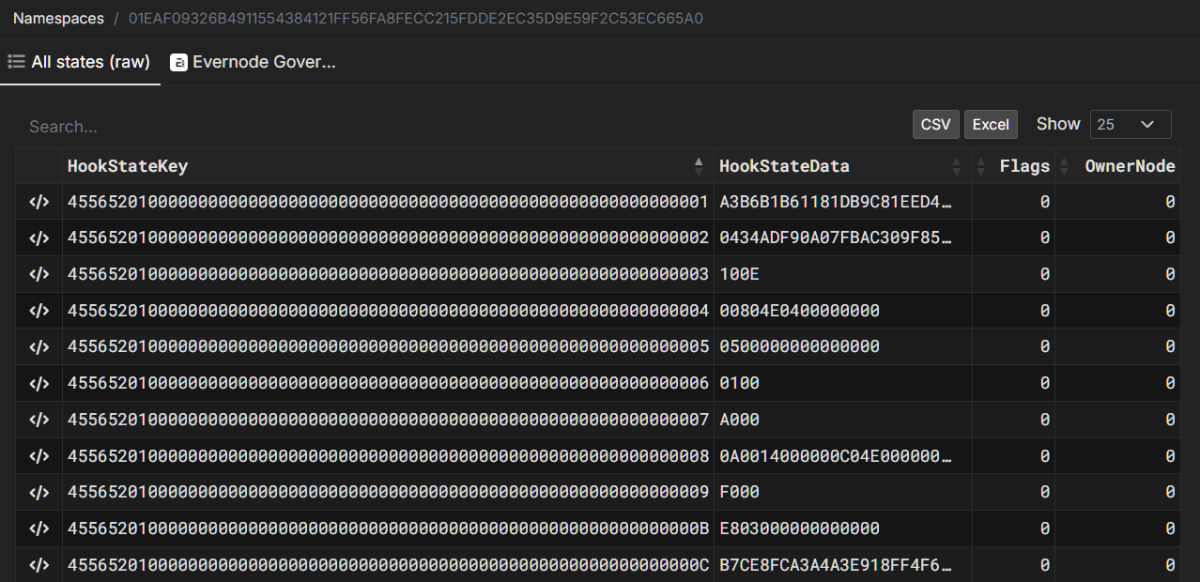
Hooks and their projections
Below the raw tab, each hook installed in the namespace gets its own section. If a manifest exists for the hook, its name appears as the tab label and its projections are listed beneath it in the sidebar — each one a named, filtered view into a subset of that hook's state entries.
The Evernode Governor Hook, for instance, carries over 25,000 state entries across projections ranging from single-entry config values like Issuer Address and Mint Limit, to large paginated sets like Host Address (12,029 entries) and Token Id (12,086 entries). All decoded, all browsable, all exportable — because a manifest exists for it. Without the manifest, you'd be looking at 25,000 rows of raw hex.
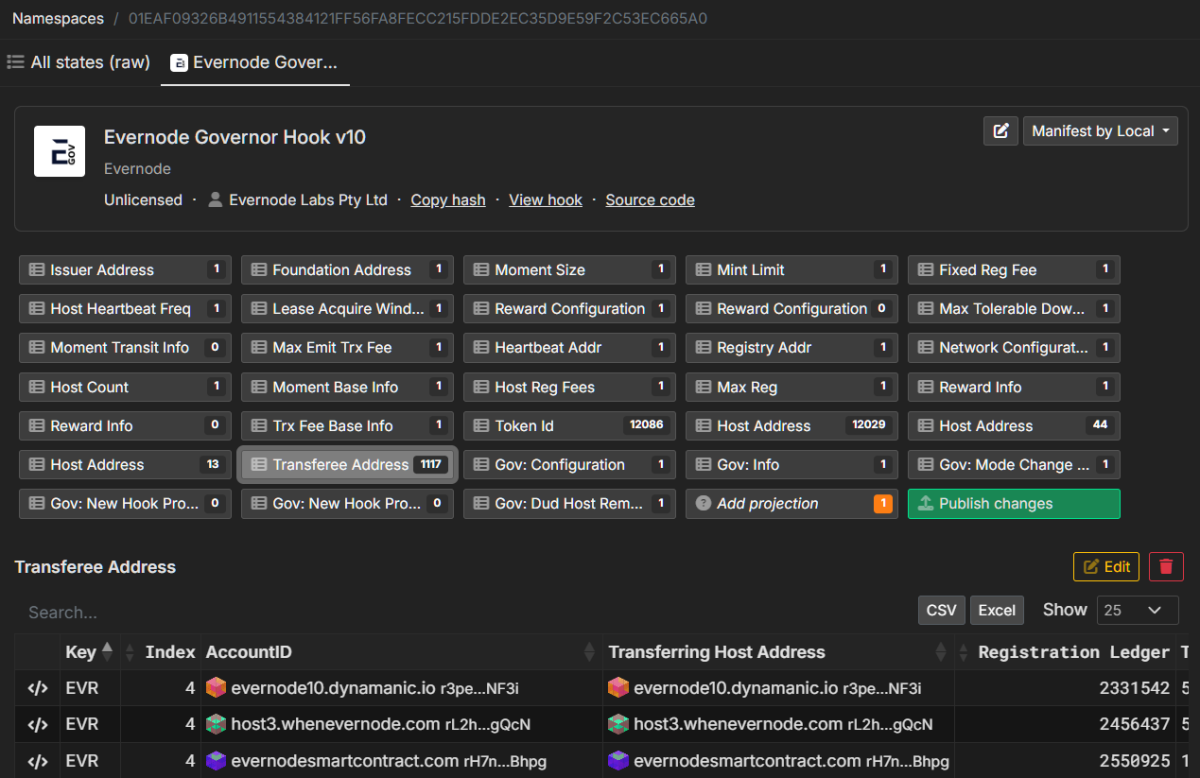
The projection
A projection is a named view over a subset of a hook's HookState entries. It defines how to decode the key bytes and the value bytes into typed columns, applies optional filters to scope which entries appear, and gives each column a human-readable label.
You can think of it as a schema-driven query: show me all HookState entries where the key matches this pattern, decode them as these types, and display the result as a table.
One important detail: a projection doesn't claim exclusive ownership of the HookState entries it targets. The same state entry can appear in multiple projections simultaneously, and this is intentional. A hook might expose one projection showing all fields of a record for technical auditing, and a second projection scoped to the same entries presenting only the fields relevant to a specific integration — different column selections, different filters, different renderers, same underlying state. This is how a single hook with a complex storage schema can surface multiple clean, purpose-built views without duplicating any data on-chain.
Each hook manifest can contain as many projections as needed, and several of them can deliberately overlap on shared state keys by design.
Building a projection
To create a projection, click Add projection in the Data Viewer. This opens the Edit Projection modal.
At the top you select which hook this projection belongs to and give it a name and optional description.
The modal has four tabs: HookStateKey, HookStateData, Projection preview, and ABI.
Defining the key (HookStateKey tab)
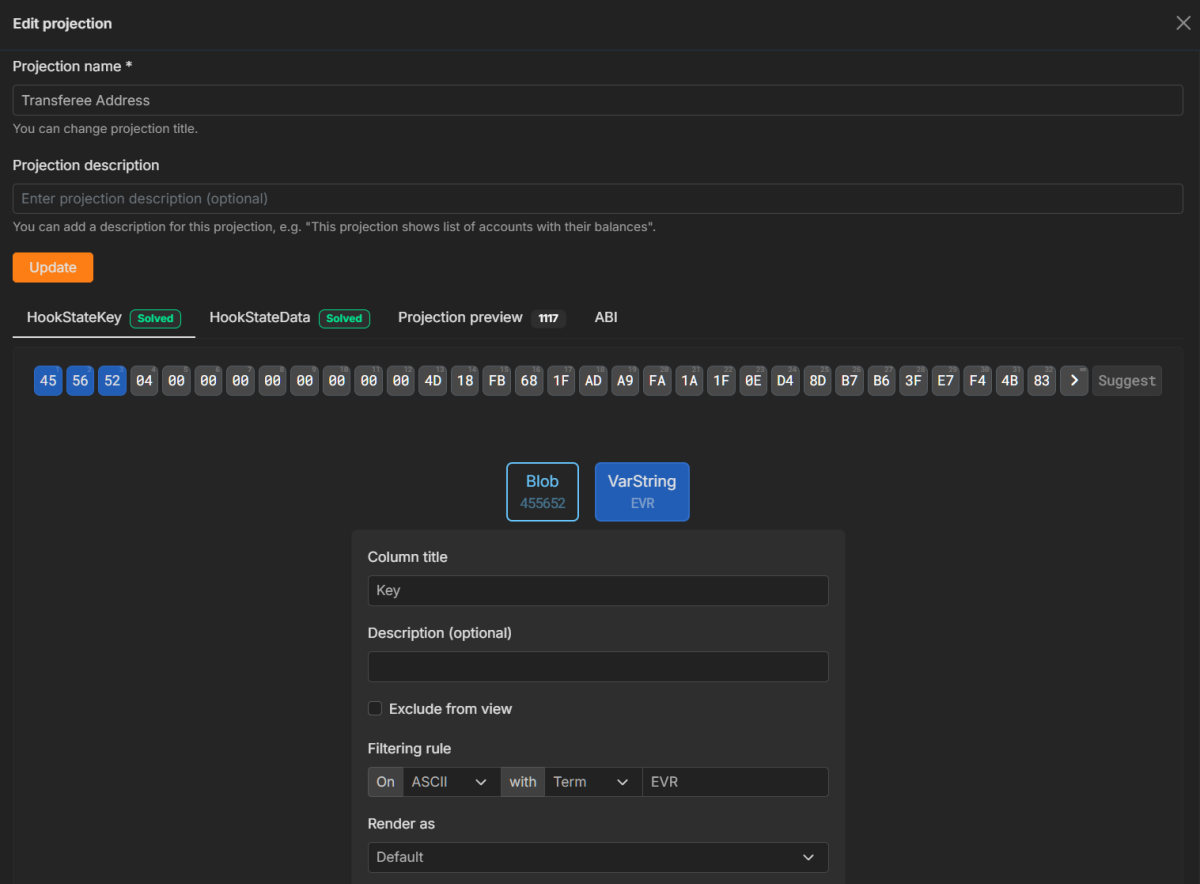
The HookState key bytes appear as a row of clickable hex buttons. You select a span of bytes by clicking — selecting byte N means you've selected bytes 1 through N as a single segment. As you do, the UI immediately shows how many state entries in the namespace match that byte pattern so far. This live match count updates in real time as you narrow the key definition, giving you instant feedback on whether your filter is scoping entries correctly before you've committed to anything.
Once you've selected a span, the type picker appears showing every ABI type that fits that exact byte length. The Suggest button runs the same autoscan as the Hook State Converter — it scans across all supported types simultaneously and surfaces the most plausible matches with decoded values shown inline.
After selecting a type, a segment options panel appears. When you have unapplied changes the panel is highlighted with an orange border and a "You have unapplied changes" warning — a useful guardrail against navigating away mid-edit without realising you haven't committed a segment:
Column title — the label shown in the projection table header.
Description — optional documentation for the field.
Exclude from view — mark this segment as hidden. Useful for padding bytes, fixed sentinel values, or type prefix bytes you're using only for filtering.
Filtering rule — define a literal term or pattern (with encoding: ASCII, hex, etc.) that this segment must match for an entry to appear in the projection. A single type-byte filter is often all it takes to scope a projection from thousands of total namespace entries down to precisely the records you want.
Render as — controls display format for timestamps, amounts, account IDs, and other types with multiple meaningful representations.
Hit Apply to lock-in the segment.
Defining the value (HookStateData tab)
The value bytes follow exactly the same flow. Select a span, pick a type, configure segment options, apply. Repeat until all bytes are accounted for and the tab is marked Solved.
To give a sense of scale: the Host Address projection in the Evernode Governor manifest decodes 22 typed fields from each entry's raw value bytes — registration ledger, fee, instance counts, heartbeat index, version, timestamps, reputation, lease amount, and more. All of it packed into raw bytes on-chain; all of it readable in the projection table.
Saving and publishing
Once both tabs are Solved, hit Update to save the projection locally. The projection now appears in the sidebar and in the main hook view — but it is not yet live. The main hook view shows a Publish changes button that becomes active whenever you have locally saved projections that haven't been pushed to the manifest yet. This two-step flow lets you build and iterate on multiple projections before making any of them public.
Publishing a hook manifest
A manifest is the container that holds all your projections plus metadata about the hook itself. Publishing one makes everything visible to everyone — not just to you in the Data Viewer, but to anyone who navigates to that hook anywhere on the explorer.
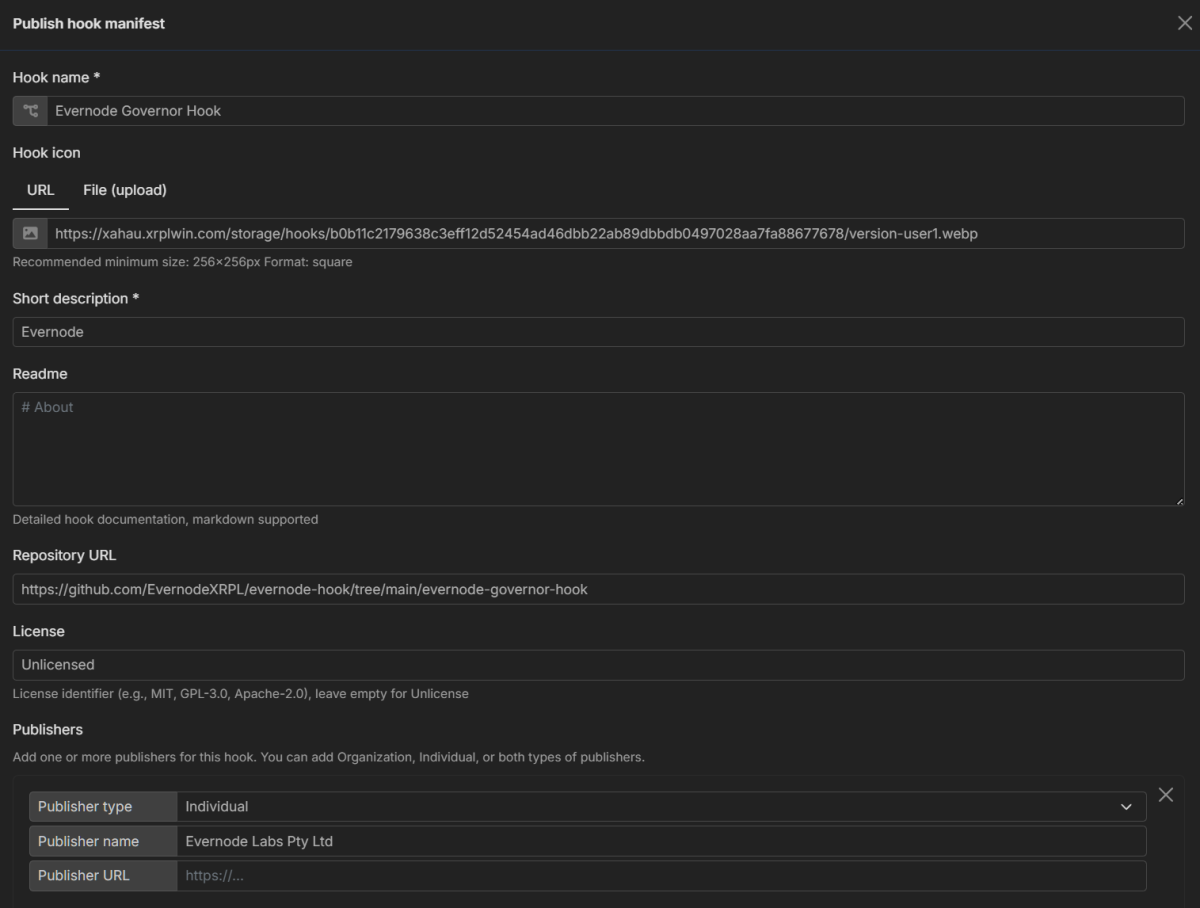
Click on green "Publish changes" buttom to make your manifest version live. In next step you will have change to idenfity hook, give it name, icon, description...
- Hook name — the display name that replaces the raw namespace hash across the explorer.
- Hook icon — a square image, minimum 256×256px, provided as a URL or direct file upload.
- Short description — one or two sentences shown in the manifest header.
- Readme — a full markdown field rendered in the About tab on the hook's manifest page. Use it for documentation, storage schema explanation, version history, or anything useful to auditors and integrators coming to the hook cold.
- Repository URL — renders as a "Source code" link directly on the hook page.
- License — a standard identifier (MIT, GPL-3.0, Apache-2.0) or leave blank for unlicensed.
- Publishers — one or more entries, each with a type (Individual or Organization), a name, and an optional URL. Multiple publishers can be added to the same manifest. Publishers are displayed in the manifest header and their combined account weight determines how this version is ranked against others.
- ABI — the aggregate JSON of all your projection definitions, auto-populated from your saved projections. A "View/Edit JSON manifest ABI (advanced)" button opens a full editor for direct manipulation when needed.
Hit Publish. The manifest is stored and associated with the hook hash. From this point on, anyone visiting that hook on xahau.xrplwin.com sees the decoded namespace name, the projections as tabs, and the full manifest metadata.
Community manifests and version weight
Anyone with an account on XPLWin can publish a manifest for any hook — not just the hook author. If a hook is deployed and widely used but the author hasn't published a manifest, a community member, an auditor, or an integration builder can step in and create one.
This openness creates an obvious question: if multiple people publish manifests for the same hook, which version does the explorer show by default?
The answer is account weight. Each website account carries a weight value, and when multiple manifest versions exist for the same hook, the explorer sorts them by the combined weight of their publishers. The highest-weight version is shown as the default. Users can switch between available versions at any time using the version selector on the hook page — so no version is hidden, just ranked.
The Evernode Governor Hook is a practical example: built and deployed by Evernode Labs, manifest created and published by XRPLWin. The "Manifest by xrplwin" badge on the hook page reflects this — hook author and manifest author are different entities, and the system handles that cleanly.
In practice this means the hook author, or an established community member with a higher-weight account, will naturally surface at the top. But a lower-weight account can still contribute a manifest — their version remains accessible and switchable. The system accommodates multiple valid interpretations of the same hook's storage schema coexisting without conflict.
The full loop
Part one covered the decoding problem and the Converter that solves it for a single hex string. This article covers what comes after.
The intended flow is:
- Write and deploy your hook
- Grab a sample
HookStatekey + value from the explorer or your test environment - Run it through the Hook State Converter to produce typed
ABI segments - Open the HookState Data Viewer, navigate to your hook's namespace, and build projections — watching the live match count confirm your key patterns as you go
- Save projections locally, verify in the Projection preview tab, then hit Publish changes
- Fill in the manifest metadata and publish — or build on a community-contributed version if one already exists
- Anyone visiting your hook on the explorer now sees decoded, human-readable state — not raw hex
For a hook storing configuration values across dozens of keys, a single afternoon with these two tools produces a manifest that makes it permanently auditable. For something at the scale of Evernode's Governor Hook — 25,000+ entries, community-maintained manifest — it's the clearest demonstration of what this system is designed to enable.
See it in action https://www.youtube.com/watch?v=G86IRZNfNH8